
When you study with us, there are two key areas you will use:
The LMS is where you’ll find many of the resources that support your studies. In the LMS, you can access:
-
your study text(s)
-
webinar bookings
-
learning activities, including practice questions and case studies
-
discussion forums to connect with other students
-
webinar recordings and additional resources
-
the syllabus and programme guide
-
a messaging system to contact the CGI, your tutor or other students
MyCG is the portal for managing your student information and accessing important resources. As a student, you’ll use MyCG to:
-
Update your communication preferences
-
View and manage your invoices
-
Update your contact details
-
View your exam results
-
Access selected study resources.
Please follow the guidance below to log in to MyCG.
Logging into the LMS
When your qualification begins, you will receive an email confirming that you have been added to the LMS. This email will guide you through setting up your login details.
Please note that your LMS login details may be different from your MyCG login.
Finding your way around the LMS
Play the video to understand how to navigate our Learning Management System.
Welcome to the Chartered Governance Institute UK and Ireland's online learning platform. This short guide will show you where to start, how to find your Sector Qualification learning, and where to go for support.
Go to learning.cgi.org.uk. Enter your username and password, then select Sign in. If you need help signing in, use the Trouble signing in link, or contact the learning team.
After signing in, you will arrive at My Dashboard. This is your main starting point for your Sector Qualification.
Your qualification course appears in the centre of the page. In this example, we are using the Certificate in Academy Governance. Select the course card to continue your learning.
Your dashboard also brings together important certificate resources, such as your study texts, Programme Guide, syllabus and Resources Hub. You can also find community and support options here, together with information about upcoming webinars where these are available.
Inside your course, begin with Start Here and the induction information. Your learning is then organised into sections. Depending on your qualification, these may include module content, webinars, multiple-choice questions, case studies and other learning activities.
Some course pages also provide quick links to study material and recordings, discussions with tutors and students, learner support and a route back to your dashboard. The exact links and activities may vary by qualification.
Workspaces provide another area for shared resources and discussion. Select Workspaces from the navigation at the top of the screen.
Use My Workspaces for spaces that are already available to you, or, use Find workspaces where your course directs you to locate a public Workspace.
Find the Workspace associated with your qualification. If a Join option is shown, and your course asks you to use that Workspace, select Join. Inside a Workspace, use the available areas to find discussions and shared resources in the library.*
Whenever you want to return to your starting point, select My Dashboard from the navigation at the top of the page.
Your account menu contains Profile and Preferences, where you can review and update the settings available to you.
If you need help, use the Help Centre or Contact Support at the bottom of the page. If you cannot see a course or Workspace that you expect to have, email learning@cgi.org.uk.
You are now ready to begin. Start from My Dashboard, open your qualification course, and use Workspaces and support whenever you need them.
Logging into MyCG
-
Select 'Login’ at the top right of the website.
-
Enter your username and password. These are the same details you used when you first registered as a student.
-
If you have forgotten your password, enter the email address you used as a username and choose the ‘Forgotten my password’ link to reset it.
If you need any help, please contact our enquiries team at enquiries@cgi.org.uk.
Accessing your resources
On the resources page, you’ll find a range of materials to support your studies, including the study skills handbook and an overview of the qualification and its learning outcomes. You can also access past papers and review examiner reports.
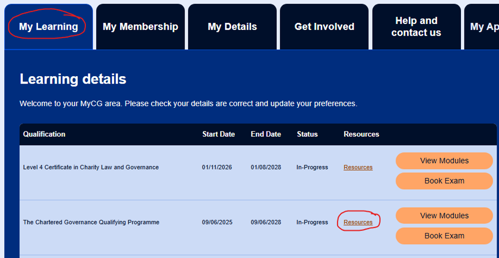
To access the resources page once logged in, refer to the 'My Learning' tab and select 'resources' next to the name of your qualification.
Choose a tab to explore the relevant resources.
MyCG Resources
Find a link to the LMS here for access to:
- Practice multiple choice questions
- Practice case studies
- Access to your study text
Discussion forums to stay connected with your fellow students and your tutor.
For each exam session, we publish the following:
-
The exam paper
-
The mark scheme used for assessment
-
The examiner’s report for that session.
You can access these documents through MyCG as part of your exam preparation.
Discover practical advice on studying effectively, managing your time and preparing for assessments to help you succeed throughout your qualification.
Staying in touch
We aim to keep you updated throughout your course by sharing regular communications and reminders about important dates and upcoming events.
Please make sure your contact details are correct in MyCG by checking the 'My Details’ section. As you continue your studies, please remember to keep your email address and other contact details up-to-date.
Choosing your communication
To update your communication preferences, select ‘open preference centre’ in your MyCG account.
As a registered student, you will receive important emails from us such as reminders about exams. We also recommend opting in to emails about other helpful events, like extra webinars for members. You can easily opt in or opt out of these communications at any time. Follow the guidance in the video below to change your communication preferences.
